
Welcome to your most important step in getting new leads and customers, the Sales Navigator tool. Whether you are looking to increase sales, reach new audiences, manage your customers in a better way, or get insights on the market, you are in the right place.
This guide will provide you with all the tools you need for success and will give you a complete and quick overview to manage and operate the SN to achieve maximum results for you.
A few words about the guide and what you can find in it. The guide was written by Barak Finkelstein, founder of the Kaizen agency specializing in LinkedIn promotion. The inspiration for the guide is from the tools for managing the SN software from the digital guide that LinkedIn released, which you can see at this link.
The guide is structured in a gradual way, in which we progress from the basic topics to the complex topics. If you see and feel that you have knowledge on a certain subject, feel free to jump ahead.
The guide is built in an interactive way with tasks, exercises, links to videos and other things that will help you become more professional, feel free to use them as needed.
Last note, the guide is written in the masculine language for convenience only, but of course it refers to everyone.
What we will talk about in the guide:
- Part one: What is Sales Navigator and what we use it for.
- Part two: Activating the account.
- Part three: Adjustments and settings.
- Part four: Orientation on the platform.
- Part five: Tips for using Sales Navigator.
- Summary.
Part One – What is Sales Navigator
SN is a very powerful platform with a wealth of capabilities designed to help you grow your lead lists in a simple and accurate way. The SN platform provides you with a wealth of resources, analyses, targeting options and insights for establishing contact with your target audience.
Before we begin, let’s go over the glossary of terms we will use in this guide.
Glossary of terms:
- Near: A person you already do business with or want to do business with.
- Account: A company you already do business with or you want to do business with.
- InMail: A private message that allows you to contact people on LinkedIn. You get 50 credits per month and for every message you sent and received a response, you get the credit back. Every month the credits are reset for you again and you get 50 new credits for sending again.
- Team link: A feature that allows you to see the connections and network of your team in order to find the best introduction path for the person you want to contact.
- Smart link: A feature that allows you to manage smart links, for example add links to your outgoing messages and receive Accurate statistics on who viewed the link, how long, which pages they viewed the most and more.
- CRM Sync: A feature that allows you to immediately import sales activity from your CRM software and export the lead lists from the Sales Navigator to your CRM software.
*This feature is open only to premium packages of SN. - 1st degree connection: A first degree connection, a person on LinkedIn that you are directly connected to. You sent him a connection offer and he approved or he sent it to you and you approved.
- 2nd degree connection: A second degree connection, a person on LinkedIn with whom you have at least one connection in common (a shared connection of a person who is a first connection of both of you).
- 3rd degree connection: A third degree connection, a person on LinkedIn with whom you have at least one second degree connection.
Part two – activating the account
As soon as you start with Sales Navigator you will receive an email from LinkedIn to activate your license. If you did not receive this email, please check your spam box.
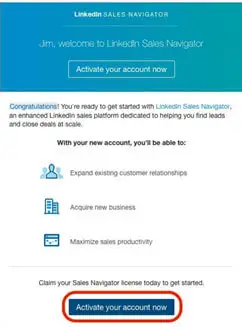
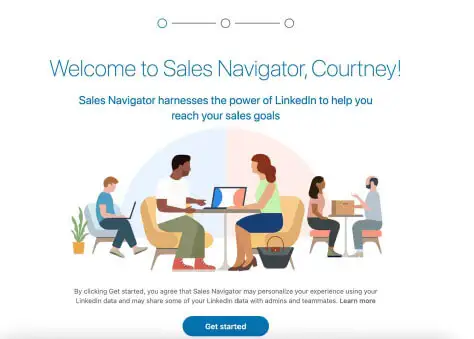
After you have activated your account via email, the SN will open for you in a separate window. Select “Start” to continue.
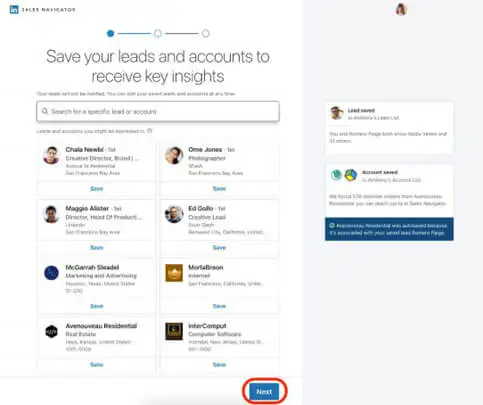
In the next step you will be asked to save lists that are relevant to you. These lists consist of potential customers (leads) and business pages (accounts). Keeping these lists consisting of the leads and the accounts will help SN to show you important alerts on the home page. However, this part is not critical because you will also be able to generate lists of leads and accounts later after you learn how to do it better. However, if you do not create a number of preferences, you will not be able to proceed to the next page.
Then continue to the search results
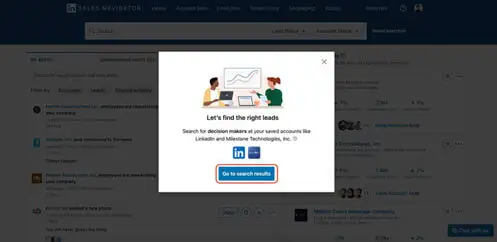
Based on the preferences of the potential customers and the companies you have saved, SN will identify additional decision makers and present them to you as potential contacts for lead generation. This way you can start generating lists and building your new customer list. The more you get used to using SN’s system and save relevant searches, the more the platform will generate similar searches for you automatically later on.
Task
Save and set 2 starting lists you want to work with. First list of leads (people with whom you would like to do business), second list of accounts (companies you are interested in).
If you need help, you can watch the following video I made for you.
How to save a new list
Part Three – Adjustments and Settings
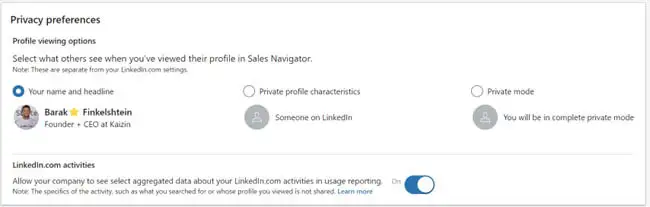
First of all, it is important to note that the SN settings are different from the LinkedIn settings, therefore even if your LinkedIn privacy settings are open to everyone (everyone can view your profile) you still need to adjust the SN settings so that your potential clients can see you as necessary.
Go to the top of the screen and click Settings
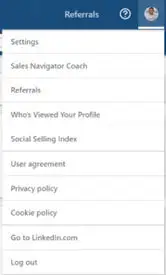
Then select the first option, so relevant leads you’ve viewed can see who you are.
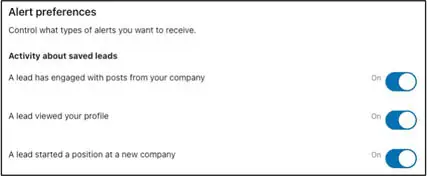
When you have finished this, proceed to the step of setting up the email notifications. Adjust the preferences for which you want to be notified by email to suit your needs.
Task
Adjust the settings in the SN profile to your needs.
If you need help, you can watch the following video I prepared for you.
How to adjust the profile settings in SN for your needs
Part Four – Orientation On the platform
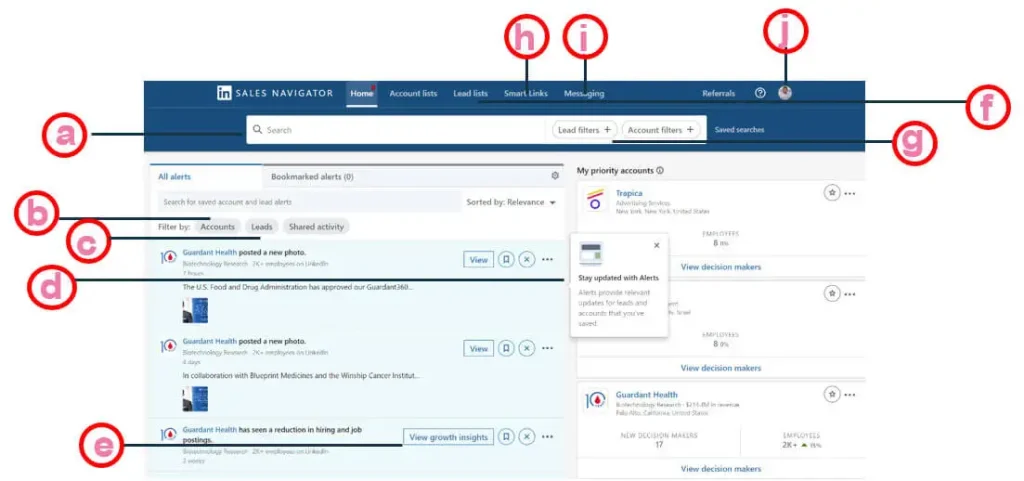
a The search window – here you can perform a free search by search words.
b. Accounts – the word Accounts represents companies in SN (see glossary above).
c. Leads – the word Leads represents people/customers in SN (see glossary above).
d, Alerts – control of receiving the types of alerts for updates of leads and accounts you have saved.
e. Insights on growth – the possibility to view LinkedIn’s insights on the company’s growth data. f. Building lists of leads and accounts – possibility to build your own lists of leads and accounts.
g. Search settings – possibility to filter the search according to leads or accounts.
h. Smart links – allows you to send smart links in messages and receive information about who viewed the link,
i. How long he watched it, which pages of the presentation (for example) he was on the most, etc.
j. Messages – Viewing the correspondence you made via the SN, you should note that these messages are not
k. The messages that appear on LinkedIn and therefore the correspondence you made through the SN will appear here. l. Personal settings – the personal settings window of your SN.
window The leads
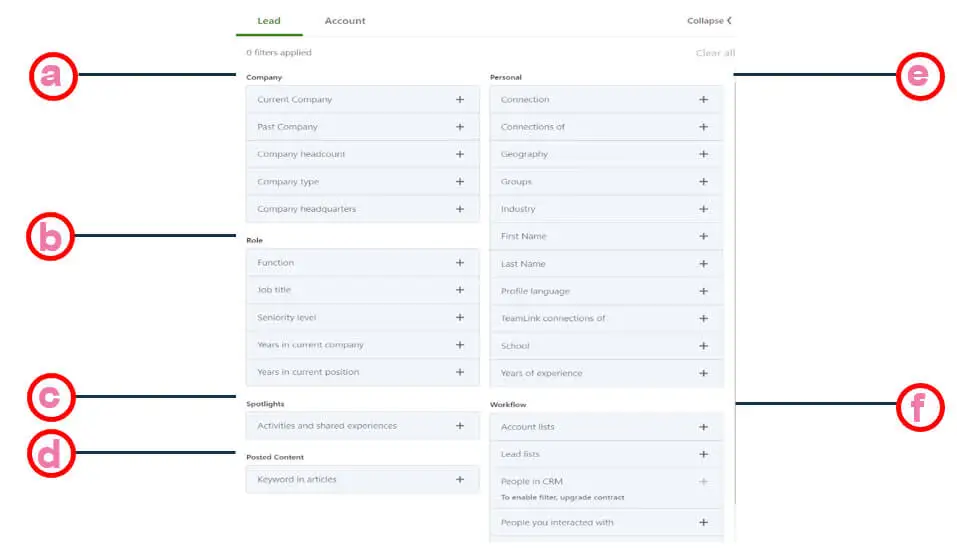
a. Filtering by accounts – allows you to filter by company type.
b. Filter by position – search by type of position and position in the company. c. Spotlights – a very cool filter that allows you to filter by special highlights such as: was he mentioned in the news, did he change jobs recently, did he write a LinkedIn post recently, etc. Later we will talk about why it is important and how it can help us. d. Search by keywords in the content – allows you to search by content published by the leads on LinkedIn.
e. Personal characteristics – allows you to perform a search according to personal characteristics of the leads in very high resolutions, thus specifying the types of leads you want to find. For example: the degree of connection, are you members of the same group, is he a connection of someone you know (allows you to find clients of your colleagues), where is he from and much more. f. Workflow processes – allows you to search within lists you have imported such as the CRM or lead lists.
Task
Prepare lead lists and save them in your SN profile according to the filters shown below.
Explanatory video – saving lead lists using filters
Window The companies
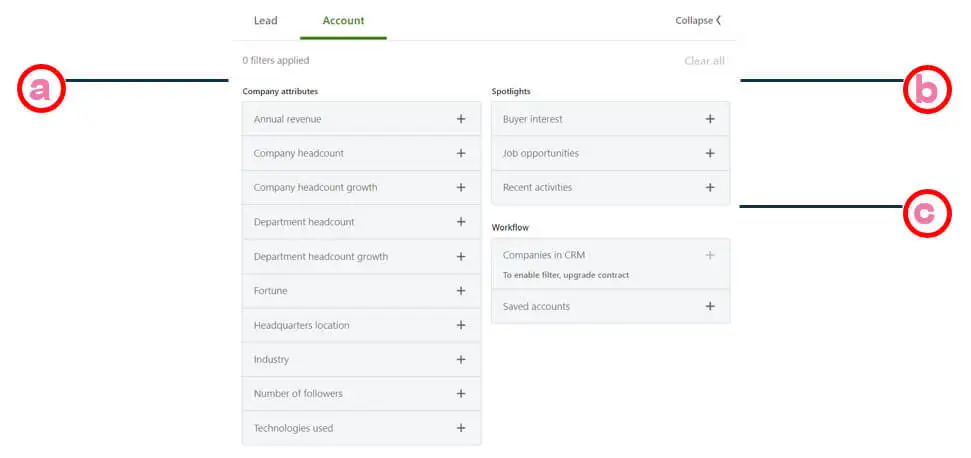
a. Company characteristics – possibility to filter companies according to characteristics, demographics, personnel, turnover, etc.
b. Spotlights – search options according to special characteristics about the companies.
c. Workflow processes – importing companies from the CRM (open for premium only) and lists saved in SN.
Task
Prepare lists of leads and save them in your SN profile according to the filters shown below.
Explanatory video – saving lists of accounts using filters
חלק חמישי – טיפים לשימוש בסיילס נביגיטור
לאחר שביצענו חיפוש של קהל הלקוחות (תחת חלונית “לידים”) או החברות שאנחנו מחפשים, אנחנו נשמור את החיפוש ונשמור את כתובת ה URL של החיפוש בכרום בחלונית “מועדפים”. ישנם שתי סיבות שכדאי לנו לשמור גם את כתובת ה URL של החיפוש: הראשונה, גיבוי נוסף לחיפוש שאנחנו מבצעים אם במקרה רשימת הלידים שלנו תימחק מכל סיבה שהיא או שלא חידשנו את המנוי ל SN והרשימה לא נשמרה. השניה, ישנם תוכנות צד שלישי, למשל תוכנות של שליחת הודעות באוטומציה מלאה אשר עושות שימוש בכתובת ה URL של החיפוש ללא צורך לשמור את רשימת הלידים בקובץ SCV.
מכאן המשך ההתנהלות מול רשימות הלידים מאוד דומה להתנהלות שלנו בלינקדאין. נוכל לשלוח לאותם האנשים בקשות חברות עם הודעה אישית, בקשה להתחברות ללא הודעה או פנייה דרך שירות ה InMail (ראה מילון מושגים בתחילת החוברת).
הרעיון ב SN זה לפצח את הקטגוריות של החיפוש ובעצם לייצר הקשרים נכונים, לדוגמא:
בחיפוש לידים נוכל להגדיר אנשים שעבדו בחברות מסוימות בעבר שאנחנו יודעים שבחברות אלו עשו שימוש בשירות שלנו, למשל מי שעבד בחברת Oracle שלצורך העניין משתמשת בשירותים שלנו. אם נצא מנקודת הנחה שאותו עובד היה רגיל לעבוד עם המוצר שלנו ועבר עכשיו לחברה אחרת, יש סיכוי טוב שהוא ירצה להשתמש במוצר שלנו גם בחברה החדשה וכל מה שנשאר לנו עכשיו זה לברך אותו על התפקיד החדש והנה יש לנו איש קשר בחברה חדשה שרוצה להוכיח את עצמו ולהביא אתו “רוח חדשה” למקום העבודה החדש.
הנה דוגמה נוספת שאפשר לעשות דרך ה SN ותעזור לנו להגביר את המכירות שלנו.
בוא נגיד שיש לי רשימה של לקוחות שמכירים אותי (ללא קשר ללינקדאין או ל SN). במקרה כזה אני ארצה לשמור אותם תחת רשימת “לידים” חדשה. לרשימה זו אני לצורך העניין אקרא בשם Past customers/contacts עם אותם לקוחות עבר שמכירים אותי כבר.
לאחר מכן אנחנו נגדיר קבלת התרעות על שינוי עבודה של לידים ברשימה הזו. כאשר “ליד” כלשהו מרשימה זו ישנה עבודה, אני אקבל על זה התראה ואברך אותו בהודעה אישית ועל הדרך אבדוק האם הם היה רוצה לייצר הצלחה בחברה החדשה ולהכניס לשם את המוצר שלי.
את אותו דבר אני יכול לעשות גם עם הפיצ’ר של Spotlights באופן מאוד פשוט. תחילה עלי להגדיר את מאפייני ההתרעות שאני מעוניין לקבל וכל מה שנשאר לי לעשות עכשיו זה לפנות לאותו “ליד” בהודעה אישית ולדבר אתו על הפוסט האחרון שהוא כתב או כל דבר אחר.
טיפ נוסף ומקורי מאוד, יש באפשרותי לבדוק את החיבורים שיש לי עם קשר כלשהו. במקרה זה אני יכול לבדוק קולגה או מתחרה שלי ולראות מי הקשרים שלו, מתוך כך להסיק מי מהם הלקוחות שלו ולפנות אליהם.
כמו שאפשר להבין השימוש ב SN הוא פשוט מדהים והגבולות היחידים לשימוש בפלטפורמה הזו הם אלו הנמצאים בראשך בלבד, אם תלמד לבצע את ההקשרים הנכונים לחיפוש ולבנות נכון את רצף ההודעות שלך, תוכל להגדיל את העסק או הארגון שלך בצורה מאוד משמעותית.
סיכום
המטרה שלי בחוברת זו הייתה להביא לך את כל המידע הרלוונטי על השימוש בכלי החיפוש של ה SN והאפשרויות הגלומות בו. אני מתאר לעצמי שאם הגעת עד לכאן זה רק אומר שאתה מעוניין ללמוד ולהעמיק את היכולות שלך בלינקדאין והפלטפורמה של סיילס נביגיטור היא בדיוק המקום בשבילך לעשות זאת.
כמו שהצלחת להבין, ה SN זהו הכלי האולטימטיבי בשבילך לייצר לידים, להרחיב ולבנות את רשת הקשרים שלך ולבצע תהליך מכירות חכם לצד קבלת התרעות על אפשרויות מכירה פוטנציאליות. בעבודה נכונה אתה יכול לבנות מערך מכירות מנצח שיוביל אותך להצלחה ויקדם את הארגון שלך בצורה משמעותית לאורך זמן.
בחוברת זו עברנו על השימושים הבסיסיים שניתן לעשות עם הפלטפורמה של הסיילס נביגיטור, אך כמובן שאתה יכול לקחת את זה שנות אור קדימה. תחשוב שאם אתה ממשק את התוכנה למערכת CRM ומחבר אותה עם תוכנת צד שלישי לשליחת הודעות ויוצר לכל המערכת הזו sequence (רצפים אוטומטיים של הודעות) שמפעילים “טריגר” (trigger) ברגע שהלקוח מבצע פעולה שהגדרת, יצרת מכונה אוטומטית ליצירת לידים וקבלת פניות ומכאן השמיים הם הגבול.
עכשיו כל שנותר לך לעשות זה להעמיק את הידע שלך בפלטפורמת ה SN ולהתחיל לקבל ביטחון בשימוש בפלטפורמה המדהימה הזאת. לכל שאלה אני כאן לרשותך, בתקווה שנצליח להגדיל ולהרחיב את הארגון שלך יחד.
תודה שהקדשת את הזמן לקרוא חוברת זו,
בהערכה רבה לעשייה שלך.
ברק פינקלשטיין.